

 English
 Portuguese
 Bahasa
Melayu
Bahasa
Melayu ไทย
ไทย 中文
中文 Tiếng Việt
 Español
 हिन्दी
 日本語
日本語 العربية
How to Create an MT5 Account
Five short steps take you from sign-up to logged in: check what you need, open your demo in the Monaxa Portal, install MT5, log in and fix any connection issues.
What You Need to Open an MT5 Demo Account
- An email address and password to register
- Access to your email to confirm your account
- A Windows computer, iPhone/iPad or Android device
- No deposit and no payment details
- No identity (KYC) verification for demo
- No obligation to open or fund a live account
Register or Log In to the Monaxa Portal
Go to monaxa.com and click Sign Up to create your account. Enter your email address and a password, then click the verification link in the confirmation email to activate your Monaxa Portal. If you already have an account, simply log in.
Open a Demo Account in the Monaxa Portal
In the Monaxa Portal, navigate to the Accounts section and click Open Demo Account.
Choose Your Account Type, Currency and Leverage
- Select Pro as your account type.
- Choose your base currency: USD
- Select your preferred leverage: up to 1:2000
- Set your virtual balance: up to $10,000 USD.
Save Your MT5 Login, Password and Server
Your demo account credentials will appear on the confirmation page:
Save these details securely. You'll use them to connect MetaTrader 5 to your demo account.
How to Download MetaTrader 5 on Windows, iOS and Android
Get the official download links from within the Monaxa Portal or you can go to the Monaxa Platforms page.
MT5 for Windows
- Download the MT5 installer using the link provided in your Monaxa Portal.
- Run the downloaded file.
- Follow the installation prompts.
- Launch MetaTrader 5 from your Start menu or desktop.
MT5 for iPhone and iPad
- Open the App Store.
- Search for MetaTrader 5.
- Tap Get to install.
- Open the app and log in with your demo credentials.
MT5 for Android
- Open the Google Play Store.
- Search for MetaTrader 5.
- Tap Install.
- Open the app and log in with your demo credentials.
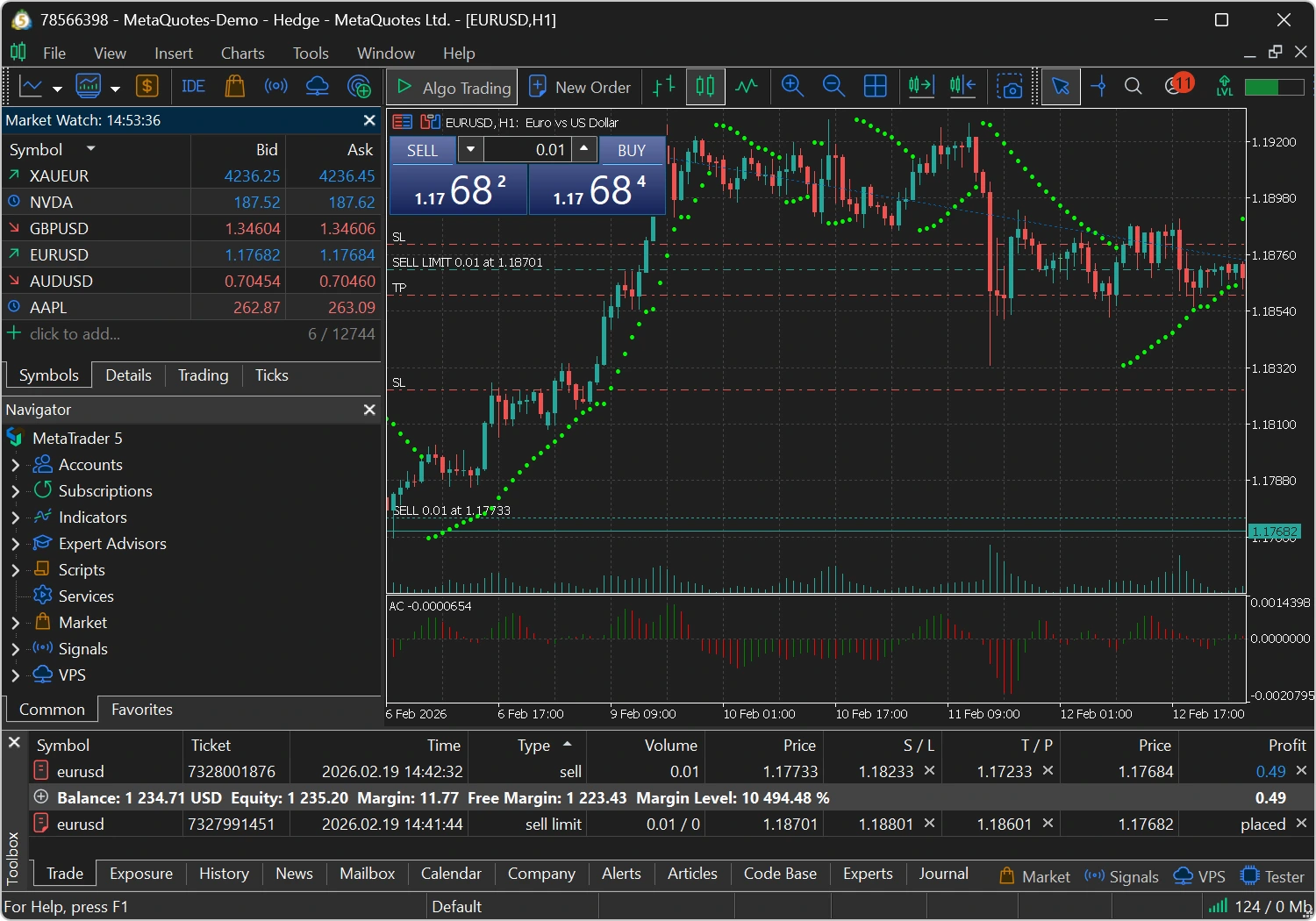
How to Log In to Your MT5 Demo Account
How to Fix MT5 Demo Login and Connection Problems
How to Trade on Your MT5 Demo Account
You’re logged in. Now learn the key terms, place your first trade, protect it with a Stop Loss and Take Profit, and build skills with practice exercises and charts.
Which Markets Can You Trade on an MT5 Demo?
Trading Terms Every Beginner Should Know
A few words you’ll see all the time. You don’t need to memorise them; come back here whenever you need a reminder.
What Do Balance, Equity and Free Margin Mean in MT5?
Once you’re logged in, these numbers sit in the Trade tab at the bottom of MT5.
How to Calculate Your Potential Loss on a Trade
Before every trade, work out your potential loss. It comes down to two things: how big your trade is and how far away your Stop Loss is.
How to Place Your First Trade on MT5
Choose an Instrument
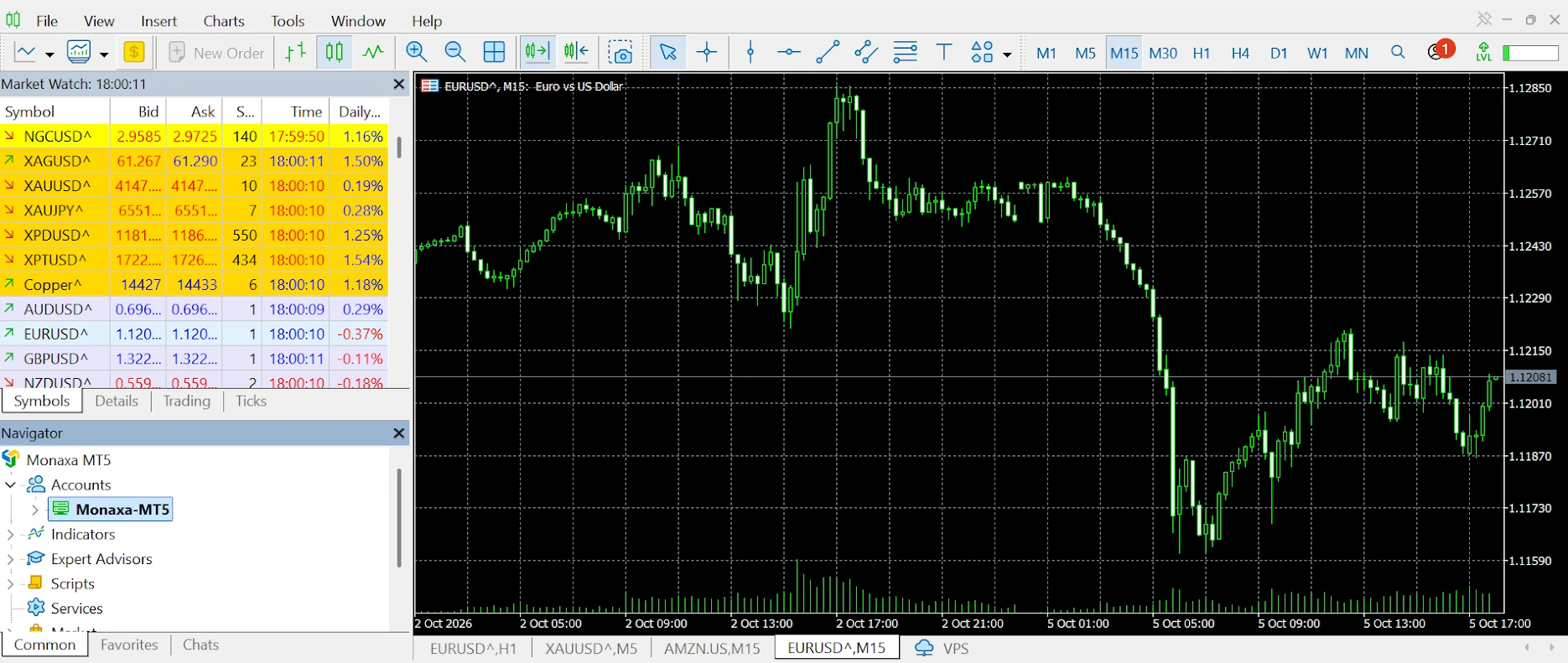
Open the Market Watch panel on the left side of the screen (press Ctrl+M if it's not visible). Browse or search for the instrument you want to trade — for example, EUR/USD or XAU/USD.
Open a Chart
Right-click the instrument in Market Watch and select Chart Window to open a price chart.
Open the Order Window
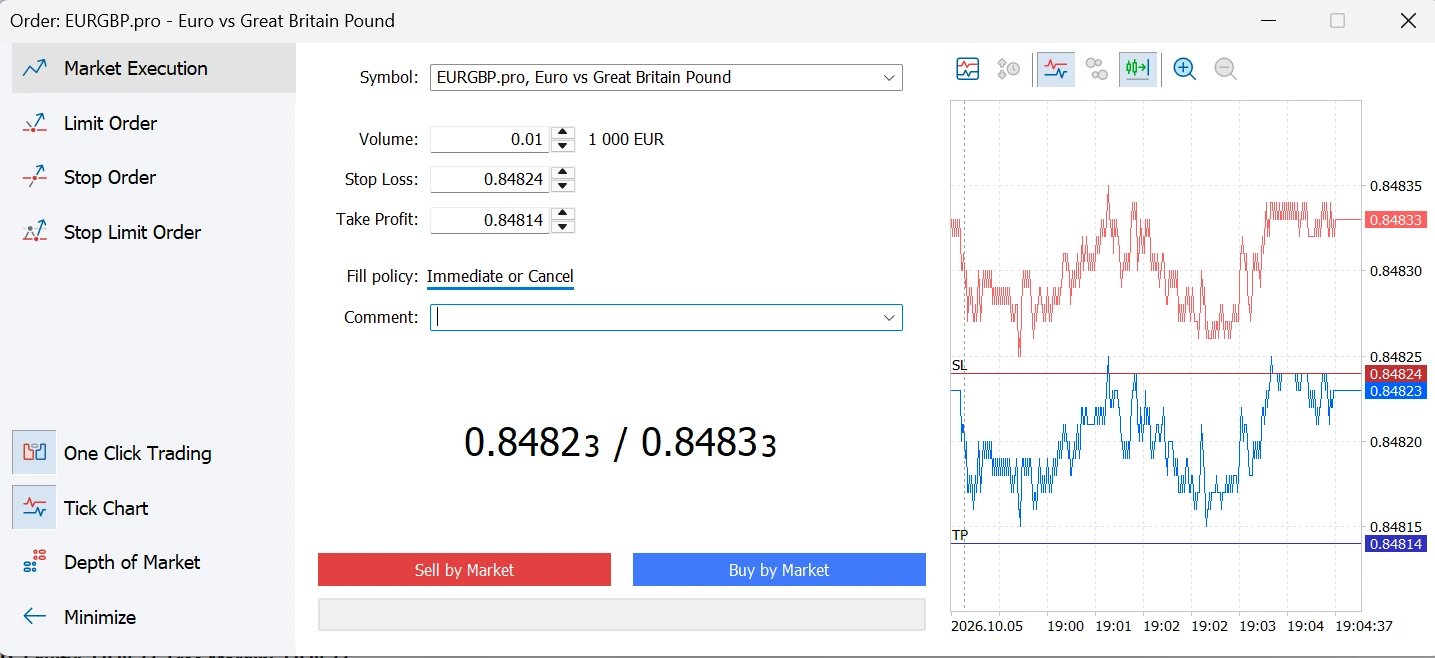
Press F9 or click New Order in the toolbar. You can also right-click on the chart and select Trading → New Order.
Set Your Trade Parameters
In the order window:
Execute the Trade
- For a market order: Click Buy (go long) or Sell (go short).
- For a pending order: Set the price level, choose the order type, and click Place.
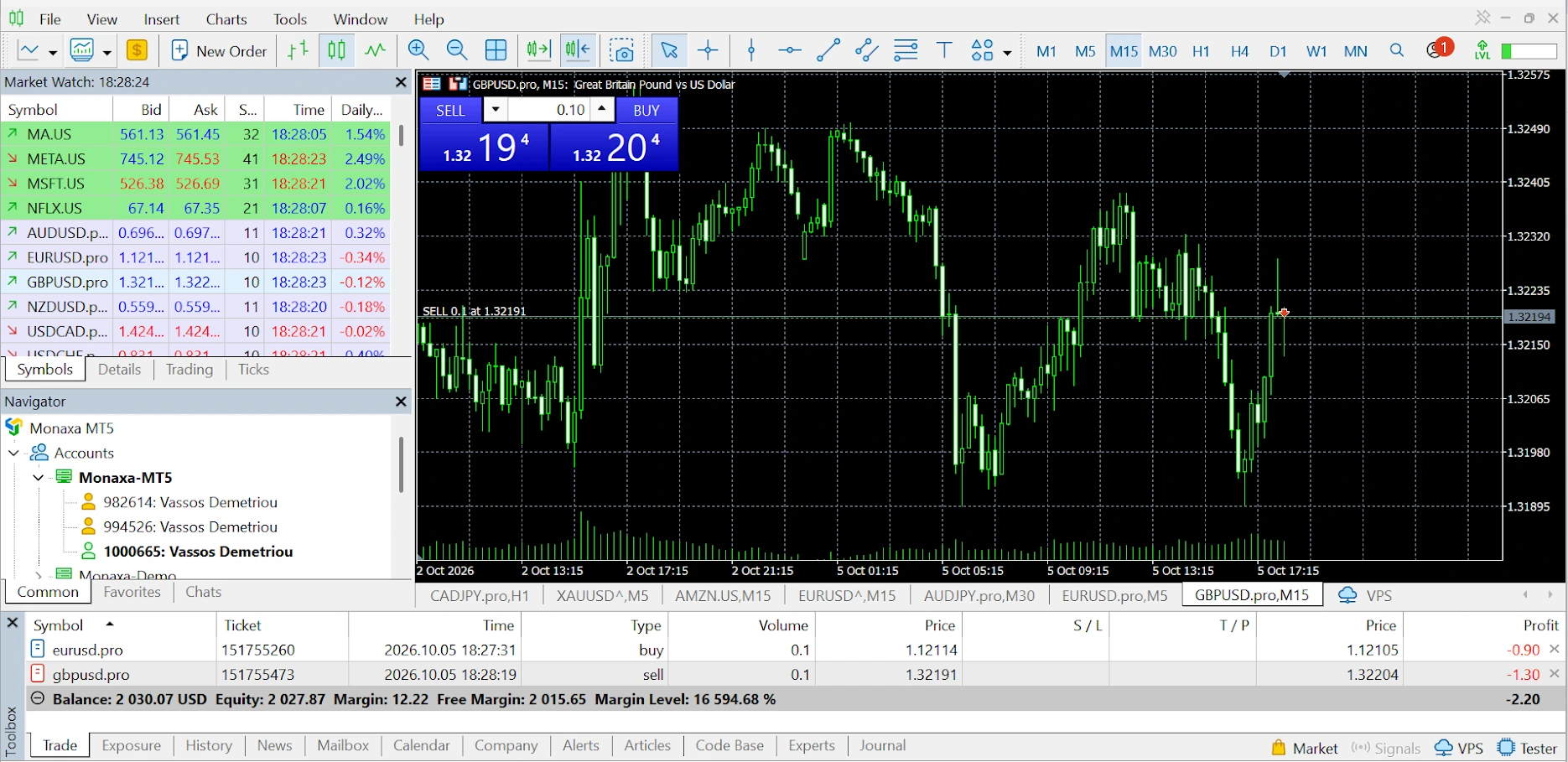
Your open position appears in the Trade tab at the bottom of the screen, showing entry price, current profit/loss, and other details.
Monitor and Close Your Position
- Go to the Trade tab in the Toolbox panel at the bottom.
- Right-click your open position.
- Select Close Position.
- Confirm the closure.
Your realized profit or loss updates your demo account balance immediately.
Your realized profit or loss updates your demo account balance as soon as the trade closes.
How to Set a Stop Loss and Take Profit on MT5
Every trade needs an exit plan. These tools can close your trade for you, so you don’t have to watch the screen all day. A Stop Loss gets you out if price moves against you. A Take Profit locks in your gains when price hits your target. A Trailing Stop follows price as it moves your way.
How to Set Stop Loss and Take Profit on Desktop and Mobile
Check that the updated levels appear on your position. If the modification button is unavailable, check that your prices are valid and meet the instrument's stop-distance requirements.
Where Should You Place a Stop Loss and Take Profit?
For an open position, the following rules apply:
Your levels must also meet the instrument's minimum distance requirements.
3 Things to Remember About Stop Loss and Take Profit
What Are the Order Types in MT5?
What Is a Market Order?
Execute immediately at the current market price.
What Is a Pending Order?
Execute automatically when price reaches a level you specify. Pick one based on two questions: are you buying or selling, and is your level above or below the current price?
How to Enable One-Click Trading in MT5
Buy/Sell buttons with a volume input will now appear directly on the chart.
What Is a Trailing Stop in MT5?
How to Set a Trailing Stop on MT5 Desktop
A Trailing Stop automatically moves your Stop Loss as your trade becomes more profitable. If the market reverses, the Stop Loss stays at its last level.
3 MT5 Demo Practice Exercises for Beginners
Clicking buttons is only half of it. These exercises help you understand what’s actually happening when you trade.
How to Use Charts and Indicators in MT5
MT5 Chart Types and Timeframes
MT5 offers three chart types and 21 timeframes. Switch between them using the toolbar buttons.
How to Add Indicators in MT5
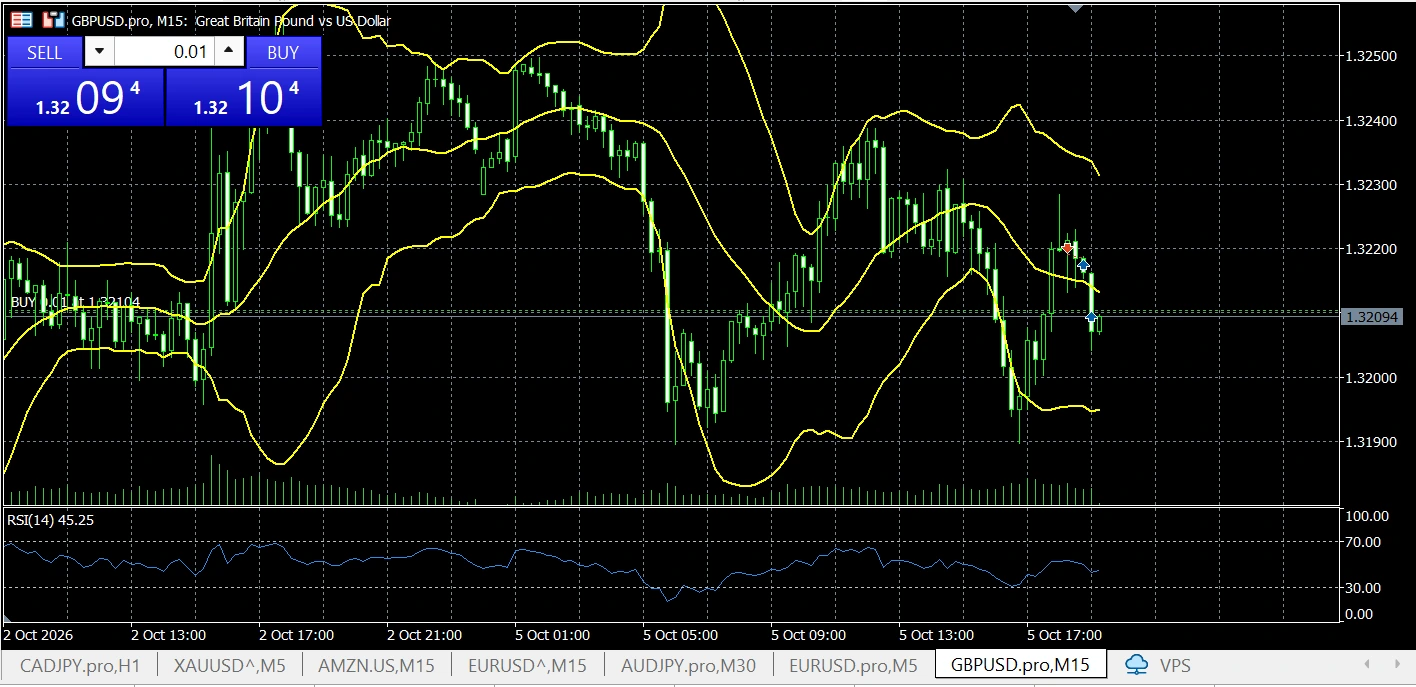
Best MT5 Indicators for Beginners
Drawing Tools
Access drawing tools from the toolbar or Insert menu:
MT5 Demo Practice Checklist
Use this checklist to get comfortable with the platform. Ticking every box means you know your way around MT5, not that you’re ready for live trading.
What Happens When Your Demo Balance Runs Out?
Lost your virtual balance? That’s part of learning. You have a few options.
Running out is a useful signal: review your History tab to see which trades cost the most, and try smaller trade sizes next time.
Questions About Your MT5 Demo Account
Quick answers to the questions new traders ask most.
Yes. The Monaxa MT5 demo account is completely free. You receive virtual funds to practice trading with no deposit required and no risk of losing real money.
You can create up to two Pro demo accounts. Each can have a virtual balance of up to $10,000 USD, set at account opening in the Monaxa Portal.
Only the Pro account type is available for MT5 demo. Compare account types. Standard, Cent, Boosted, Copy Trade, PAMM and Zero account types are not available as demo accounts.
You can set your virtual balance at account opening up to $10,000 USD per demo account. With two demo accounts, you can have up to $20,000 in total virtual funds.
Yes. MT5 demo accounts expire after 45 days of inactivity. If your demo expires, you can create a new one at any time from the Monaxa Portal.
No. Copy trading and PAMM are not available on demo accounts. These features require a live, funded account.
Market prices are real-time on both, but demo accounts use virtual funds with no real-world value. Demo execution may not fully reflect slippage, rejections, or the emotional impact of trading real capital. Demo accounts also cannot be used for copy trading or PAMM.
Yes. Once you're comfortable, complete KYC verification in the Monaxa Portal, open a live account (minimum deposit from $15 for Standard, see deposits and withdrawals), and log in to MT5 with your live credentials.
On desktop, enter your prices in the Stop Loss and Take Profit fields when you click New Order. For an open trade, go to Toolbox → Trade, right-click the position, select Modify or Delete, then click Modify. On mobile, tap the position in the Trade tab and select Modify Position.
Yes. Once accepted, they stay active on the broker's server even when MT5 is closed. Stop Loss orders don't guarantee an exact exit price; slippage can occur in fast markets or price gaps.
It moves your Stop Loss as your trade becomes more profitable and stays at its last level if the market reverses. It runs through the desktop platform, so MT5 must stay open and connected for it to keep moving.
MT5's desktop Trailing Stop uses points. On a five-decimal EUR/USD quote, 100 points equals 10 pips. Check your instrument's price precision before choosing a distance.
You choose your leverage when you open your demo account, up to 1:2000 where applicable. Leverage changes how much margin you need to open a trade. It doesn’t change the profit or loss of a trade on its own: for the same instrument, trade size and price move, the result is the same. What increases your risk is opening bigger trades, which higher leverage makes possible.
No. Demo funds are virtual and have no real-world value, so profits can’t be withdrawn. Only a live, funded account can make or lose real money.
No. To open a demo you only need to register with your email address and a password, then confirm your email. Identity (KYC) verification is only needed if you decide to open a live account, and there’s no obligation to do so.
In the Monaxa Portal, go to Accounts Overview, find your demo and click on the yellow box Add Demo Funds.